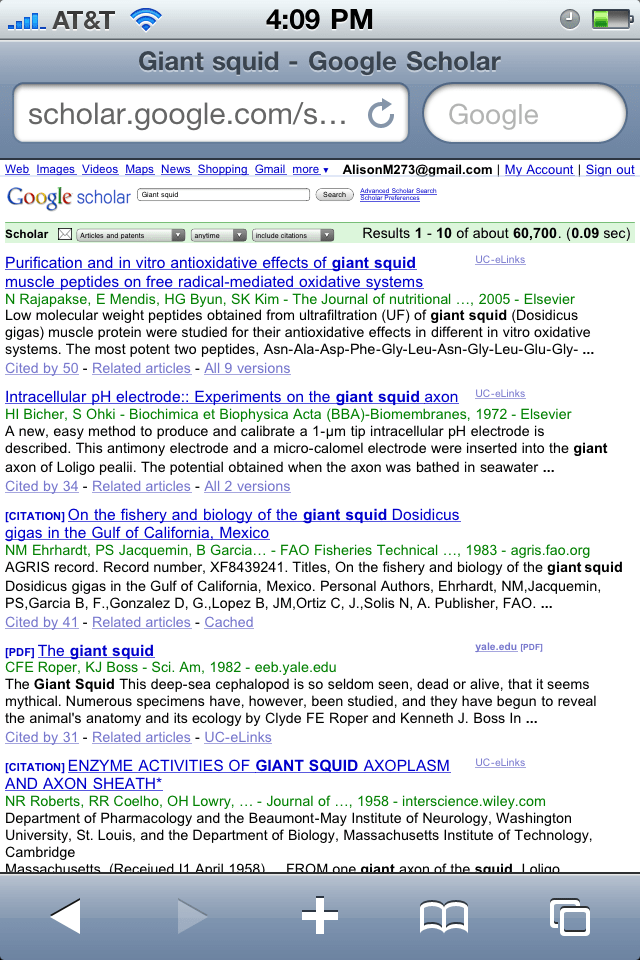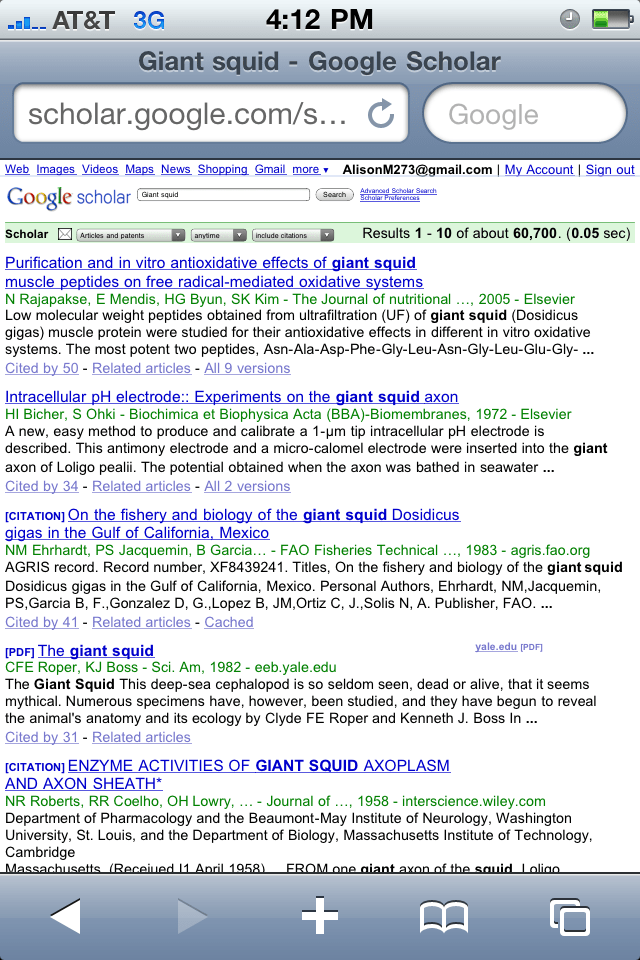
What is UC-eLinks?
UC-eLinks provides a way to easily move from an article or book citation to the full online content of the item, or, for print materials, to automatically look for a UC library location of the item, or even to request that it be loaned or sent to you. It can also link users to other services, such as author citations, web resources, and biographical information about an author. It replaces similar, but more limited functions that have been available in the CDL-Hosted versions of journal article citation databases, all of which are being replaced by more technologically up-to-date vendor-supplied versions. Eventually UC-eLinks will be available from the majority of article databases to which the CDL and campus libraries subscribe. UC-eLinks is the UC-customized version of SFX, a product of Ex Libris (http://www.sfxit.com/), which uses OpenURL linking technology.
Who can use UC-eLinks?
UC-eLinks is currently available through many of the journal article citation databases to which the CDL and campuses subscribe on behalf of the UC community of students, faculty and staff. The technology supporting UC-eLinks is able to recognize that a user is on a UC campus or is using a UC campus proxy server (by supplying the appropriate login and password). For both of these reasons use of UC-eLinks is currently limited to UC faculty, students, and staff who can use UC-eLinks.
Using UC-eLinks—Step by Step
UC-eLinks is available from many journal article database vendors now and will be added to others in the future.
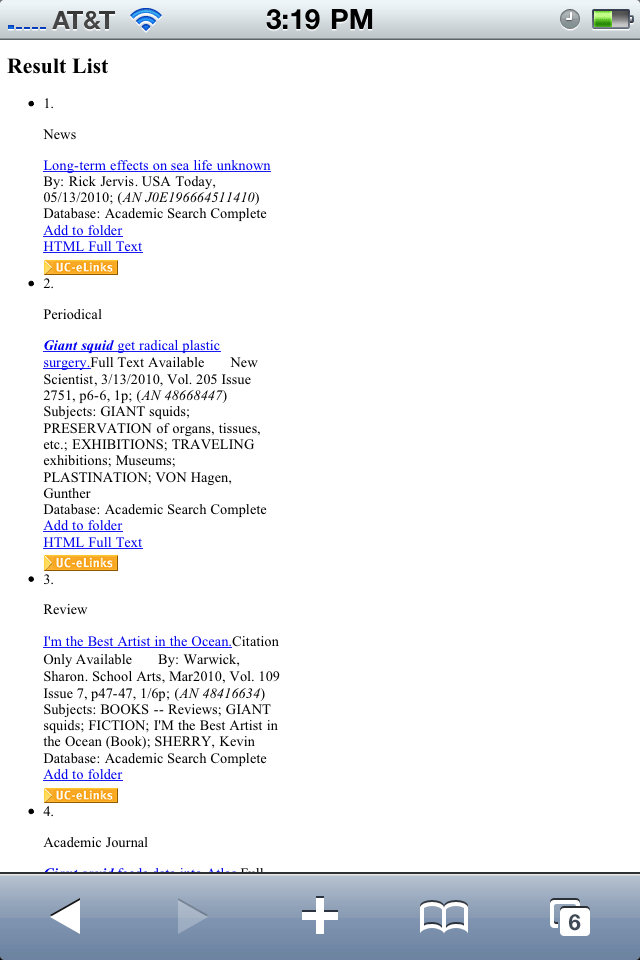
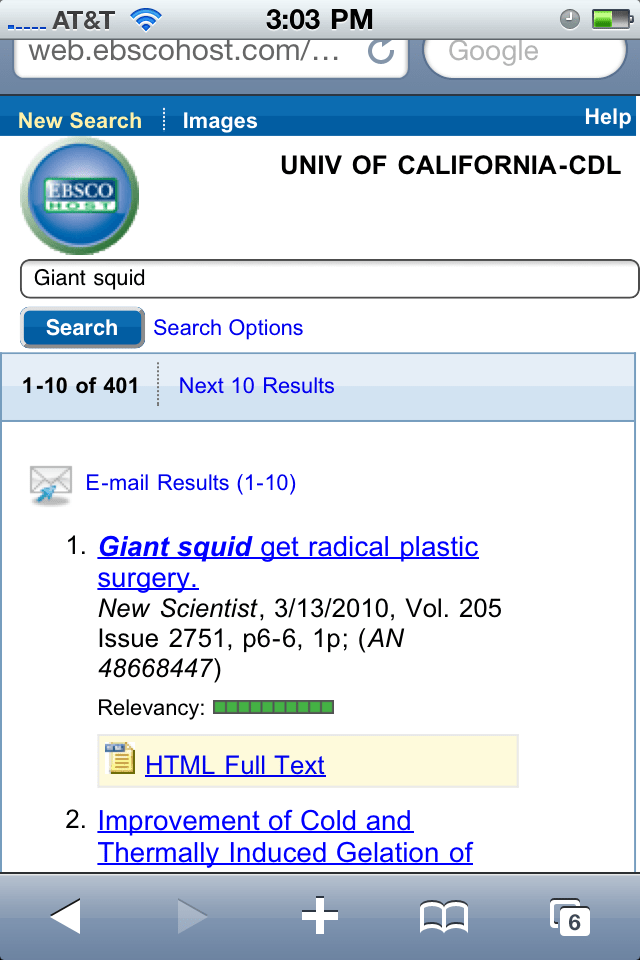
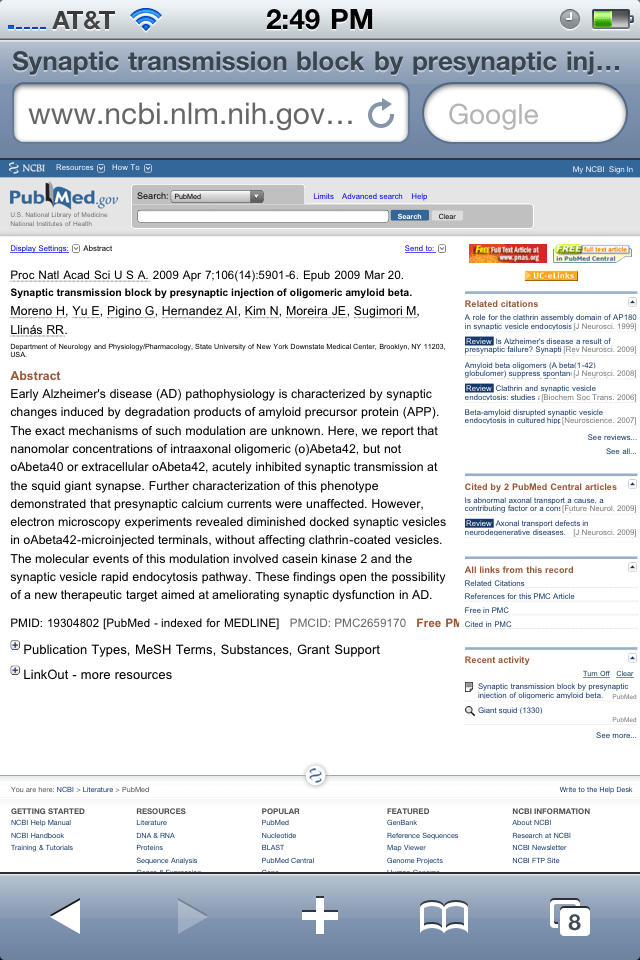
When you display citation results from a search and click on the UC-eLinks icon or hyperlinked text, you will have up to five options:
1. Select the item you wish to locate by clicking on the words, UC-eLinks,
an SFX icon or the UC-eLinks icon on the database screen.
2. Determine the services available in the pop-up window. Usually there will
be four choices. Normally, if an item is available in electronic full text,
you will not see Request. If it is not available in full text, you will see
Request. For example:
“Full text available from [publisher’s name is given]”
“See if your campus has this. Select the Full Record on Melvyl”
“For interlibrary loan or document delivery use Request”
“Need Help? Ask a Librarian”
“Report Problems with UC-eLinks”
Figure 1: UC-eLinks Window
3. To see the full text, click on the full text hyperlink. A second pop-up window will appear that links you to the full text or to the online journal (see Figure 2). Enlarge the box by clicking on the middle box on the upper right hand side of the screen. From here you can read or print the article.
Figure 2:
4. To see whether your library owns the item, click on the hyperlinked, “See if your campus has this.” A second pop-up box will appear with the title of the book or journal in which the article appears (see Figure 3). In some cases, there will be an online version of the journal, and you can get to the full text version of the article by clicking on “Link to journal” under “Online Access”. This could take you to another vendor, such as ProQuest, where you will need to input your article title. Note: if you think a record is incorrect (e.g., you think your library does own an item when the catalog indicates that it does not) please consult with a librarian on your campus.
Figure 3:

7. Read and accept a very brief copyright statement
8. Review messages about items available in other formats and locations
9. Review a Request confirmation message You may receive messages during the Request process that inform you about local availability of the item(s) or your authorization to use the service.
10. Click on “Need Help? Ask a Librarian” to contact a campus librarian with reference or research questions in person, via telephone, email, or sometimes via online chat.
Figure 6:
11. Click on “Report problems with UC-eLinks” to report problems related to connecting to resources or citation records (Figure 7).
Where to go for more information
If you have problems accessing or using UC-eLinks, you can contact a librarian
at your campus with questions about any of the services or processes listed above.
If you have problems accessing or using CDL collections and services, you may
contact the staff of the California Digital Library in one of the following ways:
For immediate assistance, call the CDL helpline:
· 510-987-0555
· Callers with TDD equipment, please call 1-800-735-2929 in
California for the telephone relay operator.
Use the feedback button at the top or bottom of this page to send
questions and comments to the CDL.